How to sign a PDF
on your iPhone.
Someone emailed you a contract and wants it back signed today. You don't need a printer, a scanner or a laptop. Here's how to do it on your iPhone with eSign, start to finish.
Updated By Alina Bohuslavska, maker of eSign
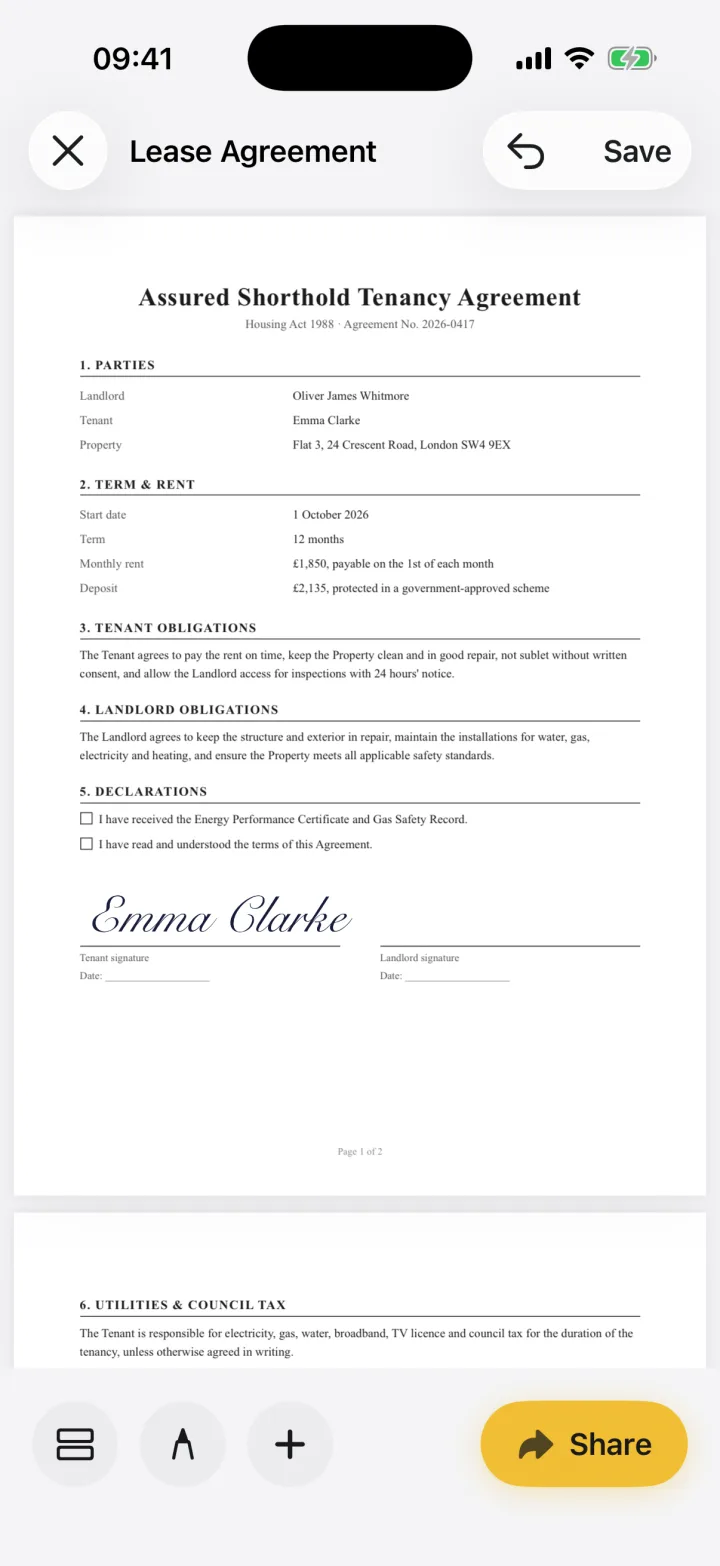

Open the PDF in eSign (from Mail, Files or the camera), tap +, choose Signature, pick or create your signature and drag it onto the signature line. Tap Share to send the signed PDF back by email, Messages or AirDrop.
Sign a PDF in five steps
- 1
Open the document
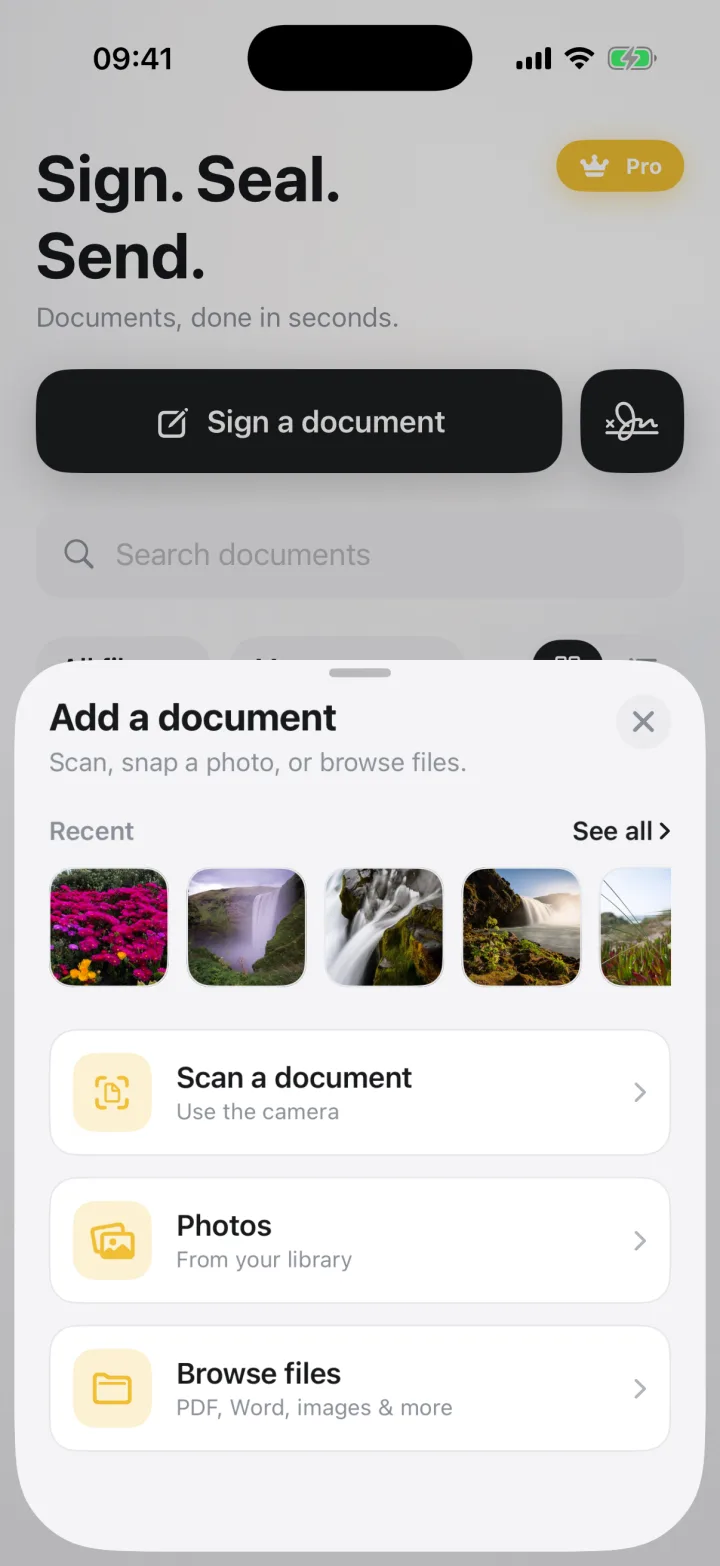
Tap Sign a document. Scan a paper copy with the camera, pick a photo, or browse to a PDF, Word file or image. You can also tap Share in Mail or Files and choose eSign.
- 2
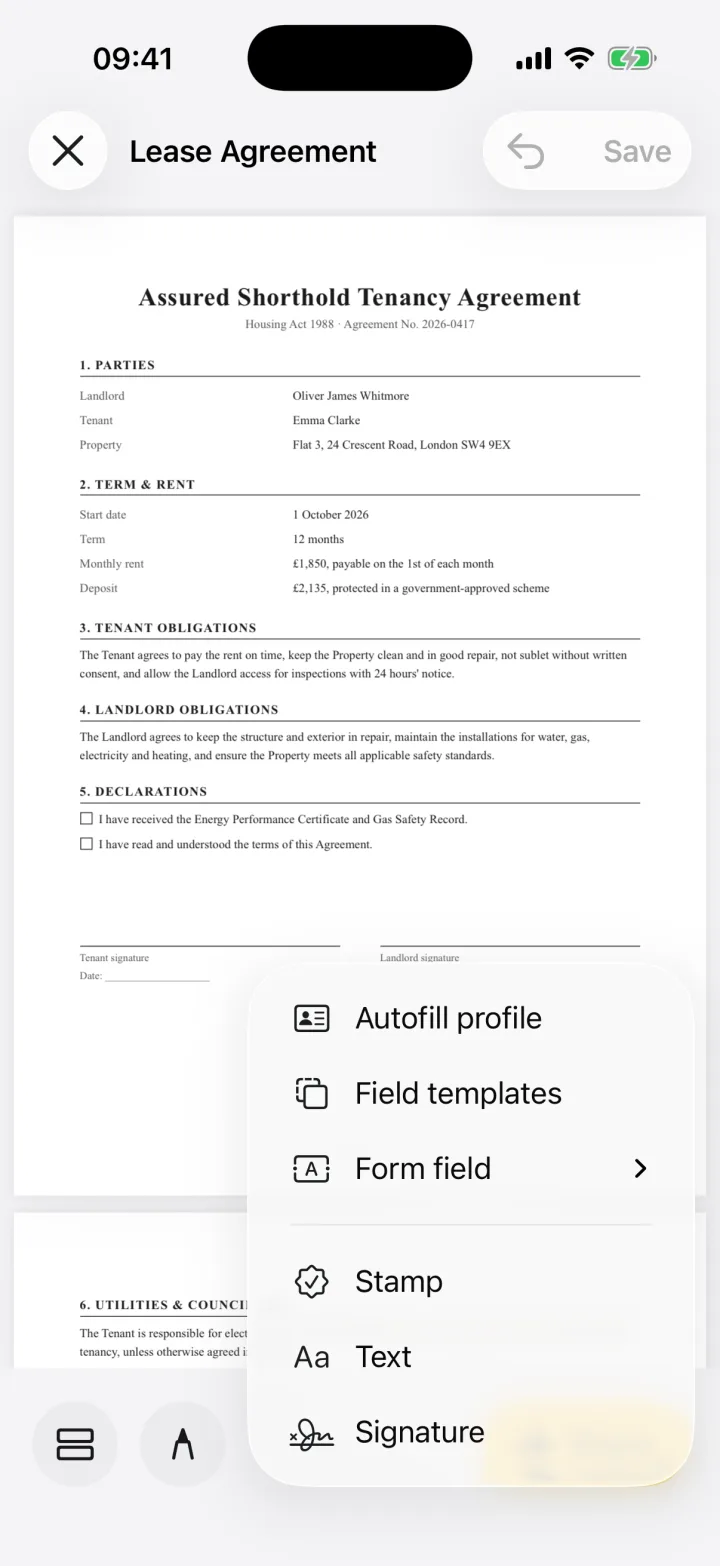
Tap + and choose Signature
The document opens full screen. Pinch to zoom in on the small print, then tap the + button at the bottom to see everything you can add.
- 3
Pick your signature
Choose a saved signature, or tap + to create one by drawing with your finger, typing your name or scanning your signature from paper. It's saved for next time.

- 4
Drag it onto the line
Your signature lands on the page. Drag it to the signature line and use the corner handle to resize it. Add the date or your initials the same way.
- 5
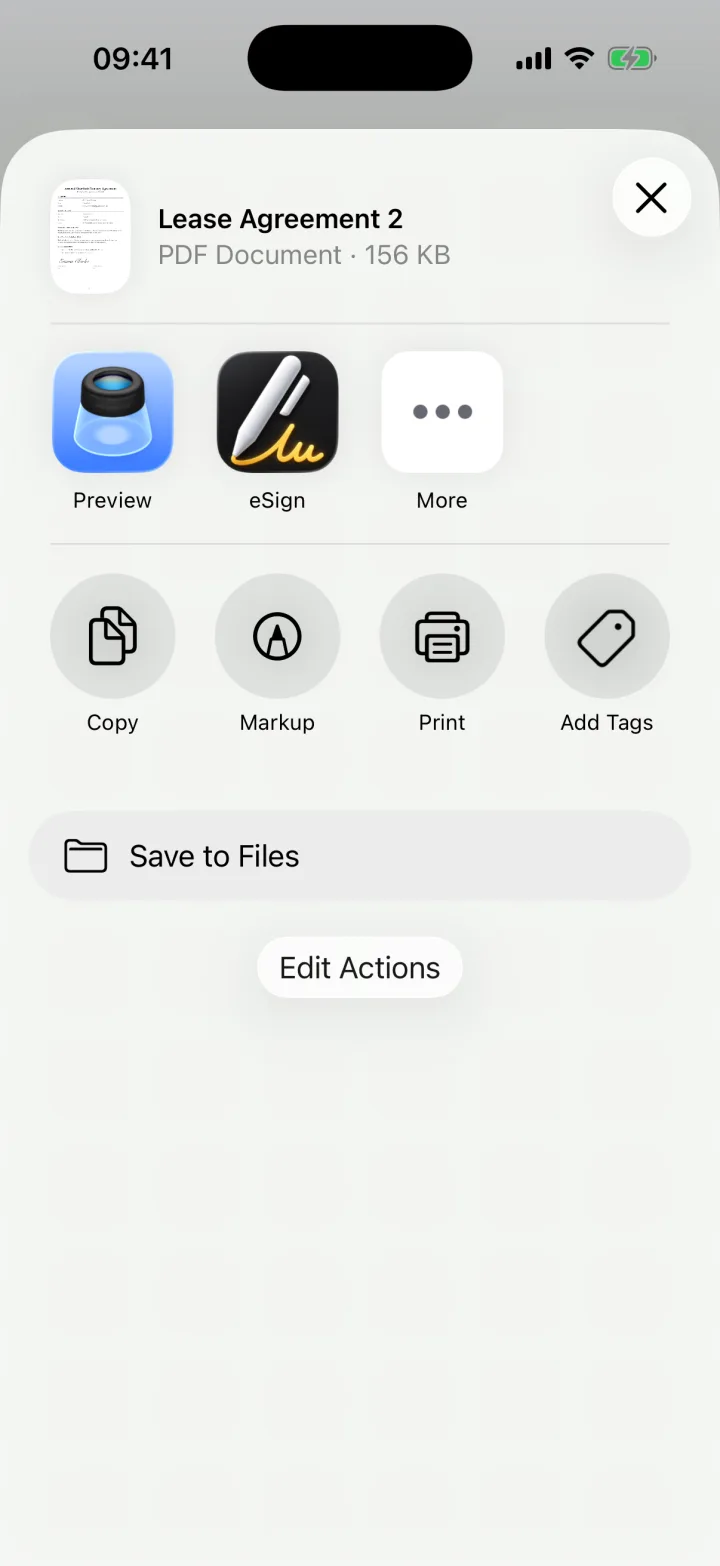
Share the signed PDF
Tap Share and choose PDF, or Flattened PDF for a final copy that can't be edited. Send it by Mail, Messages or AirDrop, or save it to Files.
Signing a PDF that arrived by email
In Mail, tap the PDF attachment, tap the Share button and choose eSign. The document opens straight in the editor, ready to sign. When you're done, share it back and pick Mail to reply with the signed copy.
What if the document isn't a PDF?
eSign converts Word (.docx), rich text, plain text, HTML and images, including HEIC and multi-page TIFF, into a signable PDF on your phone. Pages, Numbers, Excel and PowerPoint files open as a snapshot of their first page, which is usually the page that needs signing.
Can I sign a PDF on iPhone for free?
Yes. You can sign and share your first documents with eSign for free, with no account. eSign Pro removes the limit if you sign often.
Common questions
How do I sign a PDF on my iPhone without printing it?
Open the PDF in eSign, tap +, choose Signature and drag your signature onto the line. Then tap Share to send the signed PDF. No printer or scanner is involved.
Can I sign a PDF from the Mail app?
Yes. Tap the attachment, tap Share and choose eSign. Sign it, then share the signed copy back through Mail.
Does the person I send it to need an app?
No. They receive a normal PDF that opens anywhere.
Is my document uploaded anywhere?
No. eSign signs documents on your iPhone. The file only leaves your phone when you share it.
Keep reading
Ready when the
next one lands.
Free to try · No account needed