Sign an email attachment
and send it straight back.
The most common way documents arrive is as an email attachment with a short note: please sign and return. Here is the quickest way to do that from your iPhone, so the signed copy goes back in the same thread.
Updated By Alina Bohuslavska, maker of eSign
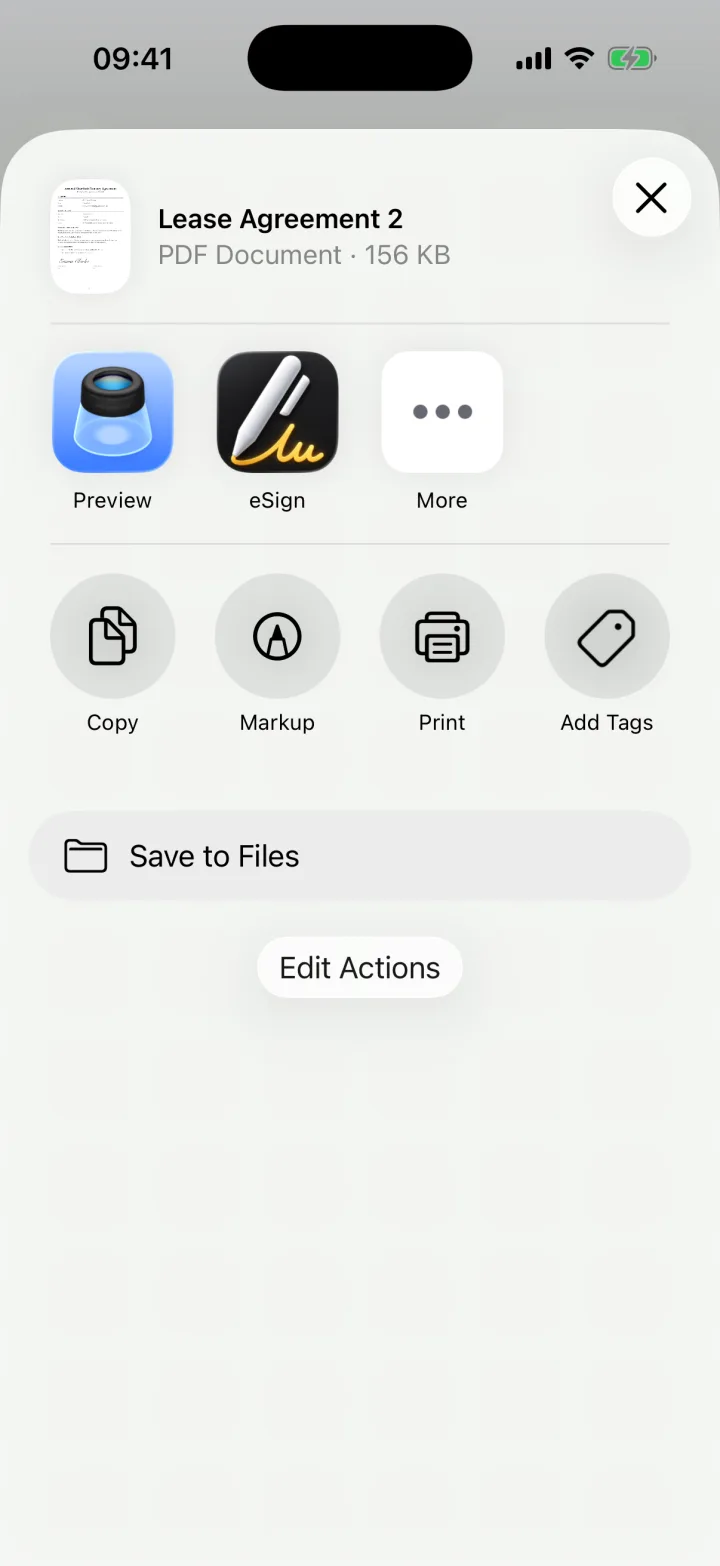
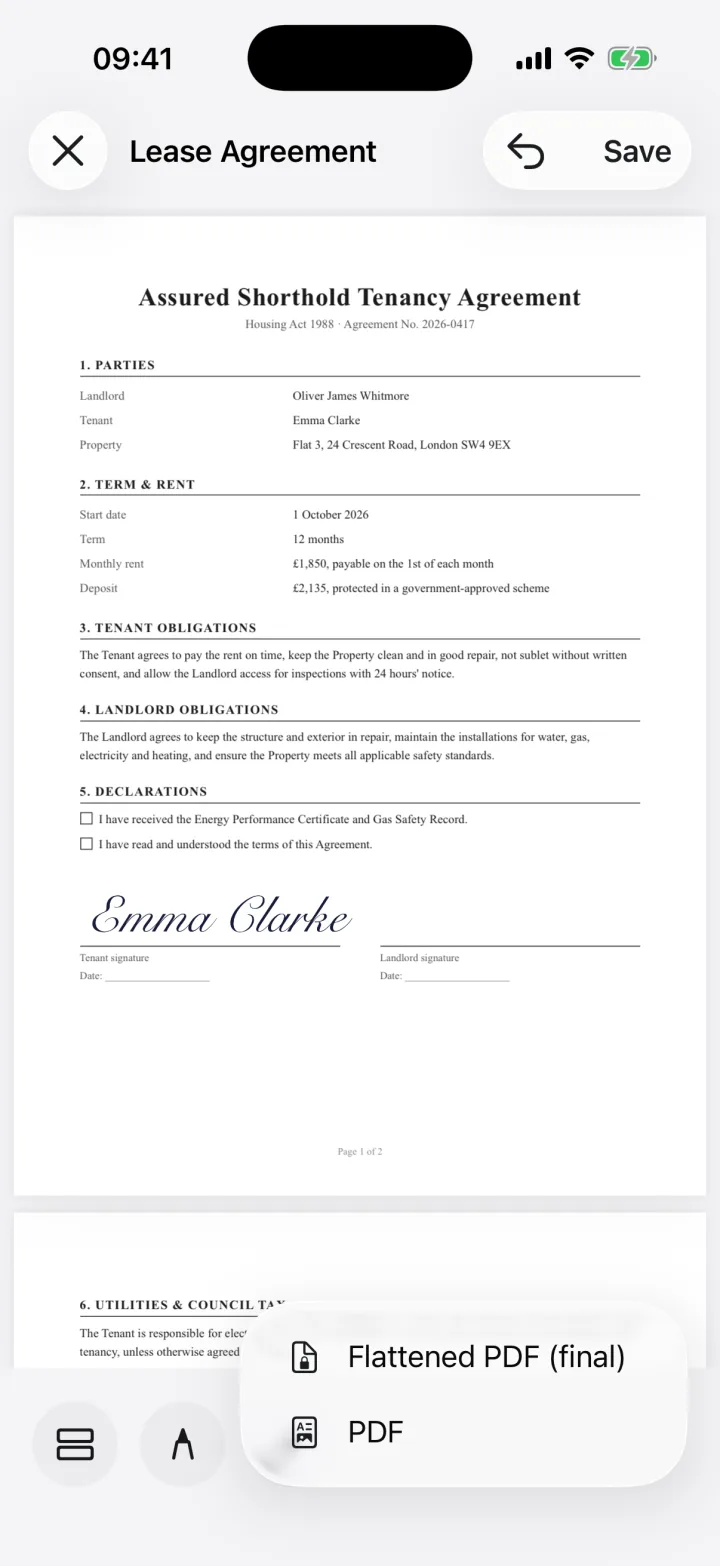
In Mail, tap the attachment, then tap Share and choose eSign. Add your signature, fill in any blanks, tap Share, choose PDF and pick Mail. The signed PDF is attached to a new email you can send as a reply.
From inbox to signed in four steps
- 1
Open the attachment in eSign
In Mail, Gmail or Outlook, tap the attachment to preview it, tap the Share button and choose eSign. If you don't see eSign, scroll the app row and tap More.
- 2
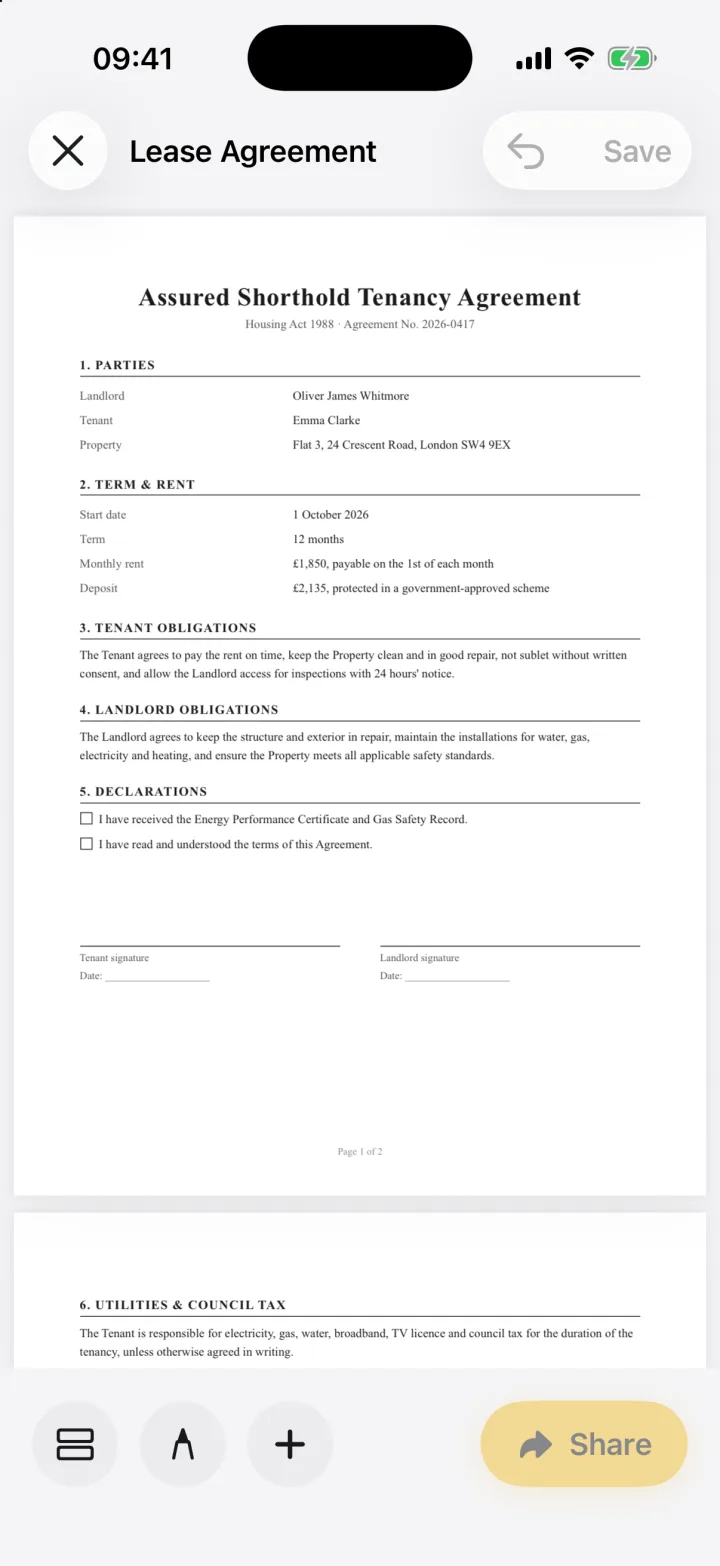
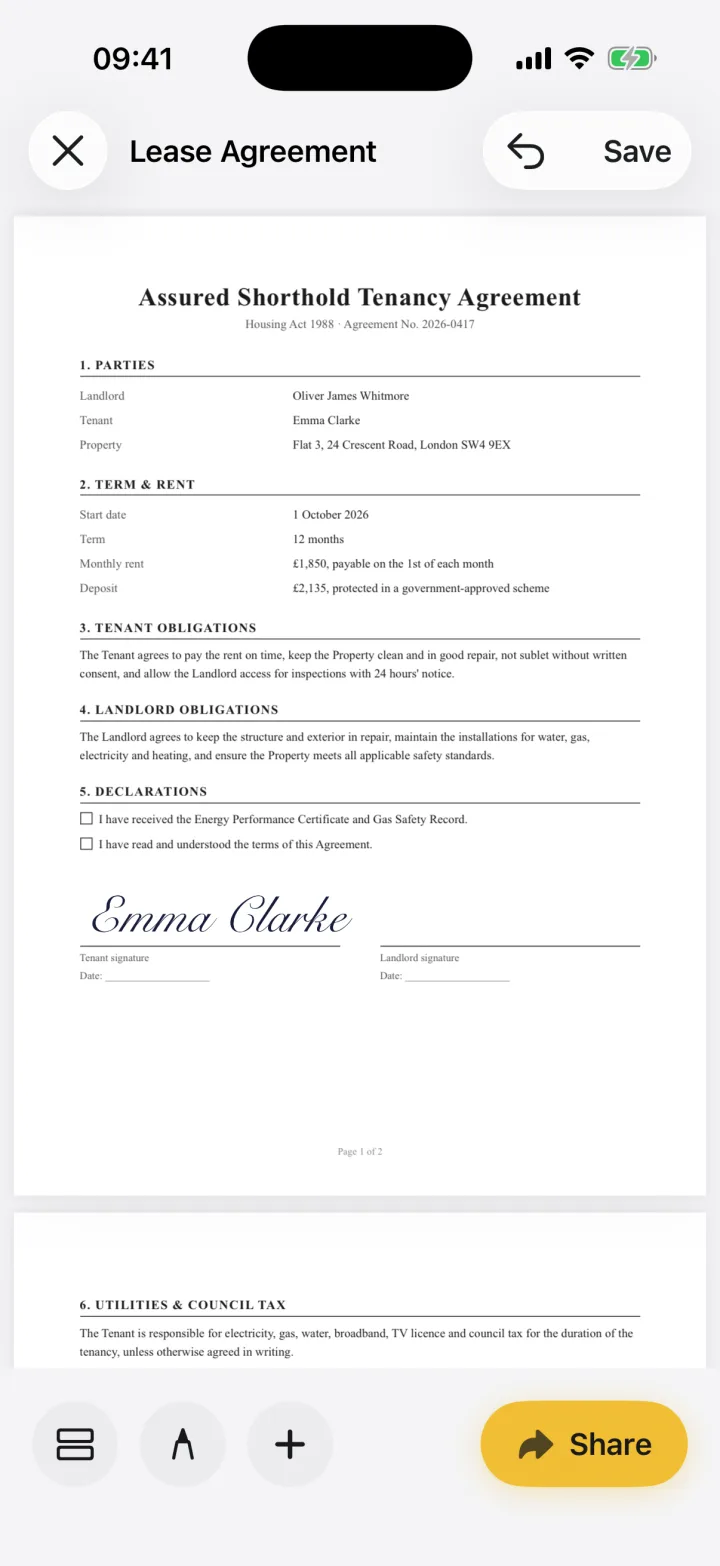
Sign where it says sign
Tap +, choose Signature and drag it onto the line. Add initials or the date the same way if the document asks for them.
- 3
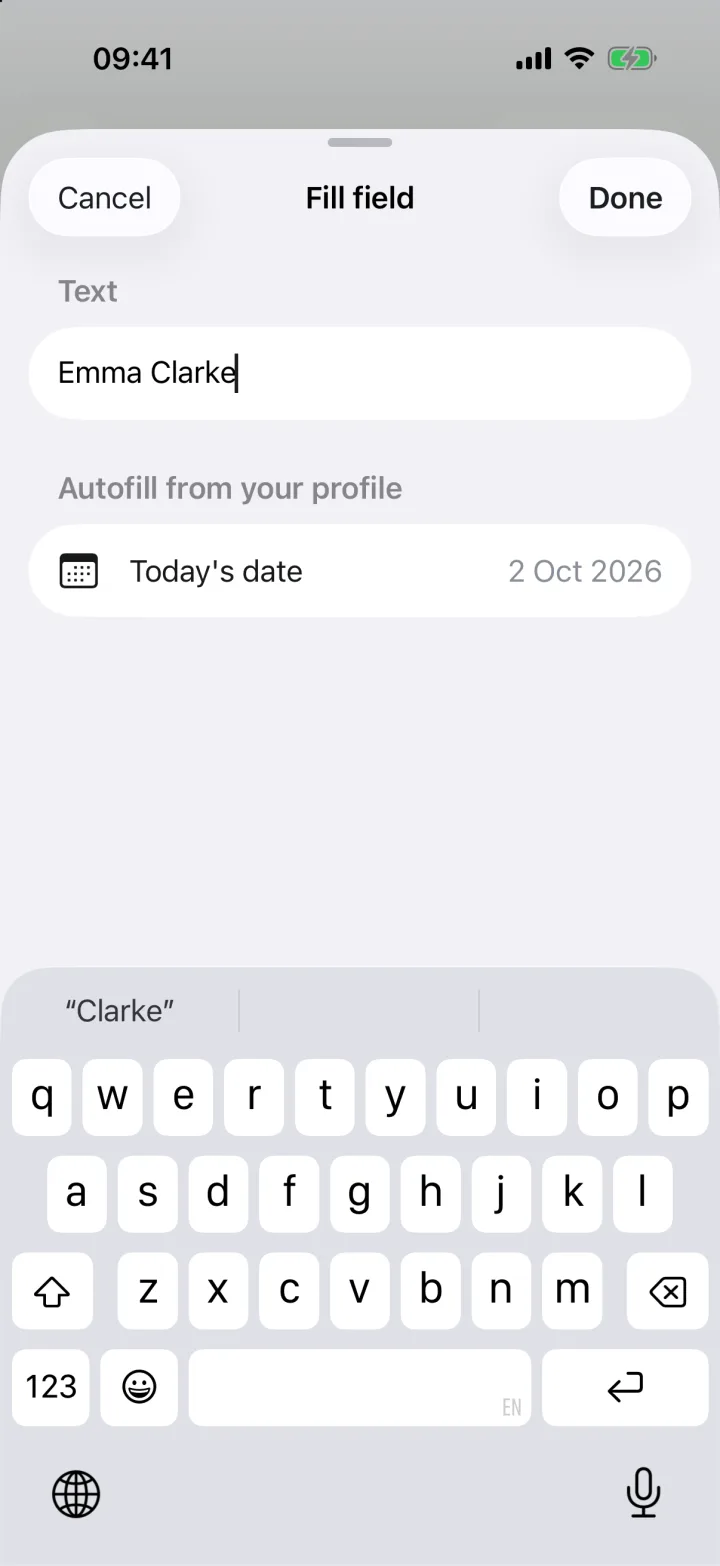
Fill in anything else
Missing a name, address or checkbox? Tap + and Form field to add it. Your autofill profile can fill common details in one tap.
- 4
Share it back by email
Tap Share, choose PDF (or Flattened PDF for a final copy), then pick Mail. Address it to the sender, or forward it to yourself first if you want to reply in the original thread.
Replying in the same email thread
iOS can't attach a file from another app to an existing reply directly. The simplest options: send the signed PDF to the sender from eSign's share sheet with a subject like "Signed: [document name]", or save it to Files first, then reply in Mail and use the attachment button to add it from Files.
If the attachment is a Word document or a photo
eSign opens Word (.docx) files, images and scans as signable documents, and you send back a PDF. Most people asking for a signature prefer a PDF anyway, because it can't be changed accidentally.
Keep a copy
Every document you sign is kept in eSign on your phone, so you can find it again or resend it later. Nothing is uploaded unless you share it.
Common questions
Can I sign an email attachment in Gmail or Outlook on iPhone?
Yes. Open the attachment, tap Share and choose eSign. It works from any app that can share a file.
Do I need to download the attachment first?
No. Opening it in eSign from the share sheet copies it into the app automatically.
Keep reading
Ready when the
next one lands.
Free to try · No account needed